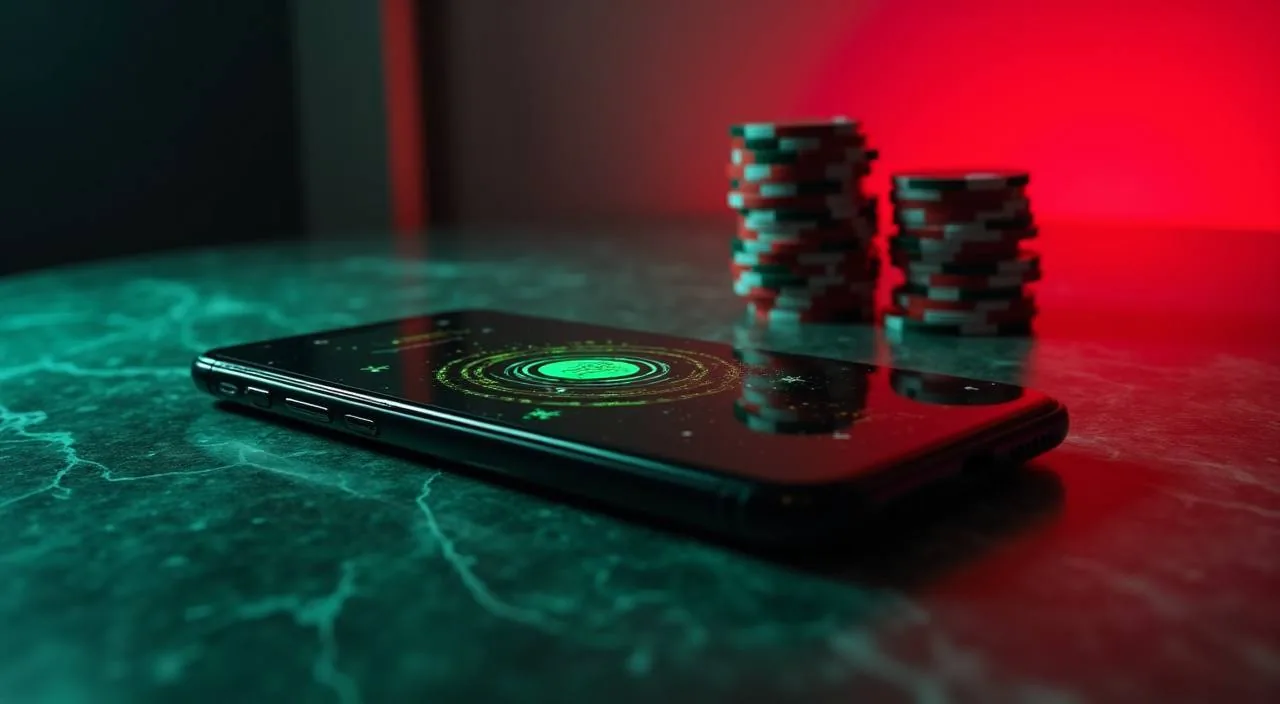
Open p2226 in your phone browser and the lobby, your account routes and the help pages load in one session. If a dedicated app build is available for your region, the account area is where we point to it.
Every screen on p2226 is laid out for a narrow display first, so the header bar, the game tiles and your account links stay under one thumb.
Header stays in reach
Same account, any device
Wallet rail view
Help pages one tap away
SCREEN BEHAVIOUR
How The Mobile Layout Behaves
There is no installer to look for. What you get is a layout that reflows the lobby, your account routes and the help pages to your screen width, plus a rail of game tiles you swipe through. Sign in and the same controls wait in the header.
Swipeable Game Rails
Tiles scroll sideways, so slots, live tables and cricket markets stay a single swipe apart. BPL Final Live sits on the sports rail, and the same order appears when you come back on a desktop screen. You do not lose your place when you scroll back.
Thumb-Reach Header Bar
The bar that holds your account link and the menu sits in the header of every page, so signing in or checking your wallet does not mean hunting through the lobby. Nothing hides behind a long-press gesture, and every route we publish is one tap from there.
Single Account Sign-In
One set of account details covers the browser on your phone and the browser on your desktop. There is no separate mobile profile to keep, and the page you land on after signing in is the same lobby either way.
Help Pages On Hand
Support pages open inside the same browser tab, so you can read the published support route and come back to the lobby without losing your place. Crash Rocket and the other game tiles are still there when you return to the tab.
THREE SHORT STEPS
Opening p2226 On A Phone
Getting in does not involve an installer, a file or a separate build, so these steps cover the browser you already have. Read them once and the order becomes routine. If a dedicated app build appears for your region, the account area is where we say so.
Open The Current Site
Type p2226 into your phone browser, or open the address you saved last time. Check the padlock and the spelling of the domain before you sign in, because links sent by other people are the usual way to land somewhere else.
Check Browser Fit
A current version of Chrome, Safari or Firefox handles the lobby layout without extra setup. Turn off desktop-site mode so the layout stretches to your screen properly, and rotate to landscape when a table view asks for it. Keep to one browser for the site.
Sign In Once
Enter the account details you set up for p2226 and the lobby opens with your wallet link already sitting in the header bar. Keep that sign-in to your own device, and sign out when you hand the phone to somebody else.
Save The Address
Add the address to your home screen when your browser offers that shortcut, so the next visit takes one tap. Nothing is packaged into a separate app, so the icon opens the live page in your browser and always loads the version we run now.
DEVICE CHECKLIST
Checking Your Phone Before You Sign In
Compatibility here is mostly about the browser, not the handset model, so this list stays short. Run through it once on the phone you use most and you will know whether the lobby loads cleanly. RTP figures appear only where a game or its provider exposes them.
Browser Access
Any current mobile browser will do the job. Allow cookies for the domain so your sign-in sticks, keep the browser updated when your phone offers one, and avoid tools that block scripts, because the lobby tiles need them to load.
Screen Layout
The layout reflows to whichever width your phone reports, so the tiles stack instead of shrinking. Text buttons stay large enough to tap, and your account links stay in the header whether you hold the phone in portrait or landscape.
Account Requirements
You need one account, created through the sign-up page, with details that match what you can verify about yourself. Eligible regions and local law decide whether the account and the games behind it are open to you. Check the terms shown at sign-up first.
Supported Devices Check
We do not publish a handset list, because browser support matters more than the model number. If your version of Chrome, Safari or Firefox is current and the lobby loads, you are on supported ground; if it does not, the help pages give you the route to ask.
HELP ROUTES
Where Mobile Help Actually Lives
Support on a phone is the same support you get anywhere else: the published help pages, your account area and the contact route listed there. We do not run a mobile-only channel, so you are not passed between teams depending on the device in your hand.
Published Help Pages
The help pages cover signing in, your account details and how the lobby is laid out. Read them in the same tab as your account and the answers stay on screen while you follow what they describe. They open from the header menu.
Account Area Messages
Notices about your own account appear after you sign in, on the account page rather than in a pop-up. That is where you would see anything addressed to you personally, including changes to the route you use to reach us.
Contact Form Route
Where a contact form is published, use it from the phone you signed in with and give the account details you used. State your browser version if the question is about how a page loads, because that is the first thing we check.
BEFORE YOU SIGN IN
Trust Checks On A Small Screen
Mobile is where most of you arrive, and where the wrong link is easiest to miss, because the address bar is short. Four checks take under a minute and settle most doubts about whether you are on p2226 or on something that copied the look.
Confirm The Domain
p2226 is the address we publish. Check it in the bar before you type account details, and treat a link from a group chat or a forwarded message as unverified until you have done that check. Bookmark it once and the question stops coming up.
Read The Device Pages
Our pages explain how the layout behaves on a phone, what to do when a tile will not load and where the help routes sit. Read them before you change any setting on your handset. If it does not match your screen, raise it with us.
Protect Your Credentials
Your account details open your wallet as well as the lobby, so keep them off shared handsets. Use the screen lock your phone already has, and sign out rather than leaving a session open on a device you do not carry.
Use The Recovery Path
If you cannot get back into the account, the published recovery route on the sign-in page is the one to follow. Do not send account details to anybody who contacts you first, whatever screen name or number they use. We never ask that way.
COMMON QUESTIONS
What You Ask About Mobile Access
Quick answers to the mobile access questions we get most, covering the browser route, device continuity and what the lobby shows you on a small screen.
Do I need to install anything to use p2226 on my phone?
No installer is needed for the browser version, which carries the lobby, the account pages and the help routes. If a dedicated app build is ever offered for your region, we point to it from inside the account area.
Will my sign-in still work if I switch from phone to laptop?
The account is the same on both, so signing in on a desktop opens the lobby you were already using on your phone. Bookmark the address on each device you use so you never reach the site through a link you cannot check.
Which games load best on a small screen?
Tiles reflow, so slot rooms and live casino tables both work on a phone. Cricket is the category most of you open first, and BPL Final Live sits on the sports rail. Rotate the handset when a table asks for more width.
Why does an RTP figure show for some games and not others?
RTP is shown only where a game or its provider exposes the figure. Where it is not published we have nothing to quote, so we leave it out rather than fill the space with an unsupported number. The game panel shows what it displays.
How do I get help if a page will not load on my phone?
Open the help pages from the header menu on any lobby page and follow the contact route listed there. Mention the browser you use and what the screen showed, because that solves most loading questions faster than a general description.
 Casino / Slots